Switch screen and camera mid-recording
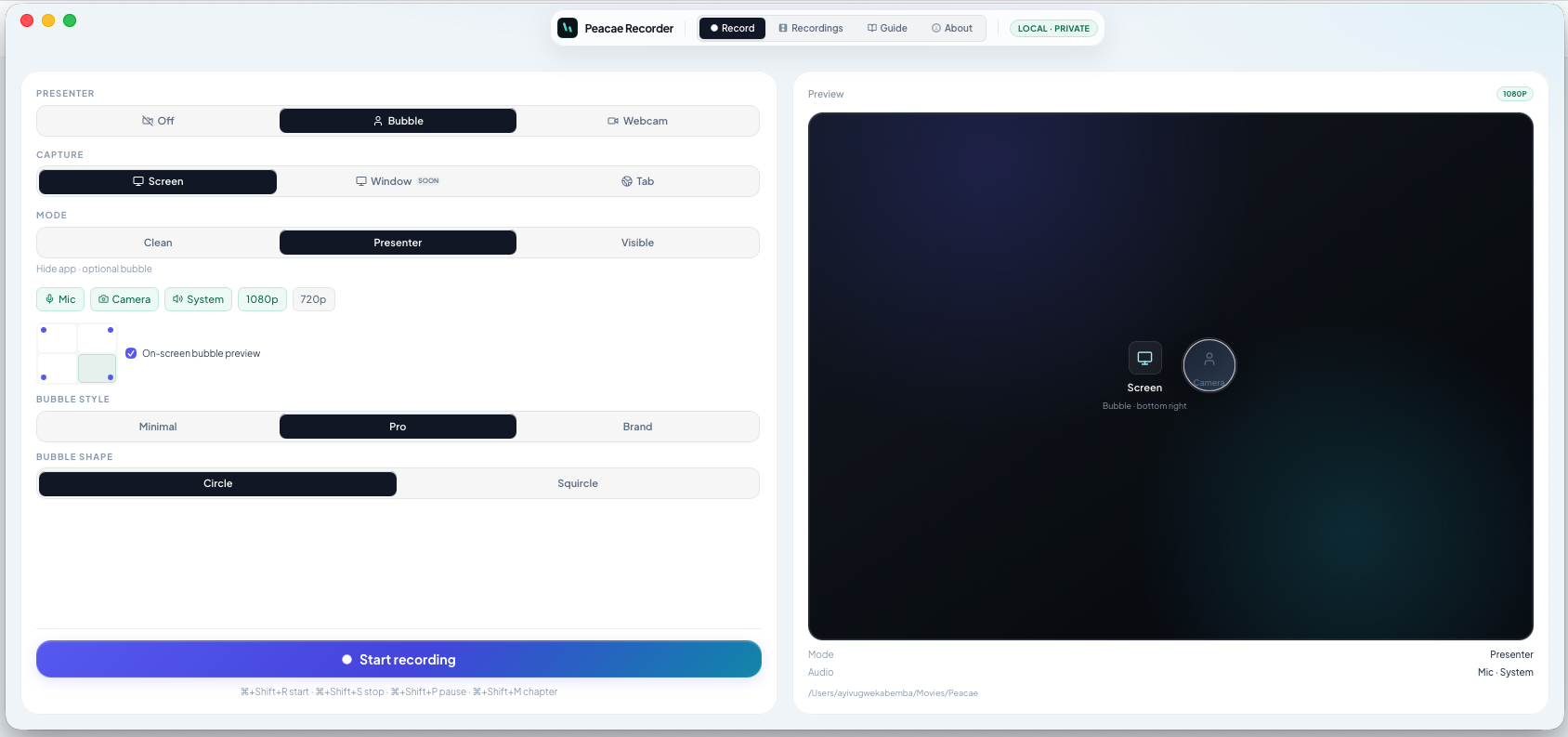
Long demos often need both slides and a face on camera. Stopping and restarting creates awkward joins. OhRec lets you switch between screen-focused and camera-focused views while a single recording continues.
When to use switch view
Start on screen for context, then move to camera for a direct message, then back to screen for the walkthrough. The transition cross-fades so viewers stay oriented.
How it works in the app
Begin recording with screen or tab capture and a presenter bubble or camera enabled. During recording, use the switch control on the recording bar to toggle layouts. You keep one timeline and one exported file.
- •Enable camera or presenter bubble before recording.
- •Record screen content as usual.
- •Tap switch view on the recording controls to cross-fade to camera.
- •Switch back anytime — chapters still mark key moments.
Screenshots
1 screenshot — opens in a gallery dialog
Related Articles
How to record your screen privately in the browser
A quick walkthrough of the web recorder setup: sources, audio, quality, and what stays on your device.
Presenter bubble styles and shapes explained
Style your on-screen presenter bubble before you record — position, preview, theme, and shape.
Your recordings library stays on this device
Why local storage matters and how to manage recordings on web and desktop.